Built from real counter workflows
These are the newest additions to AviQR — order confirmation codes, live tracking, and billing-counter tools — shown here with real screenshots from a running shop.
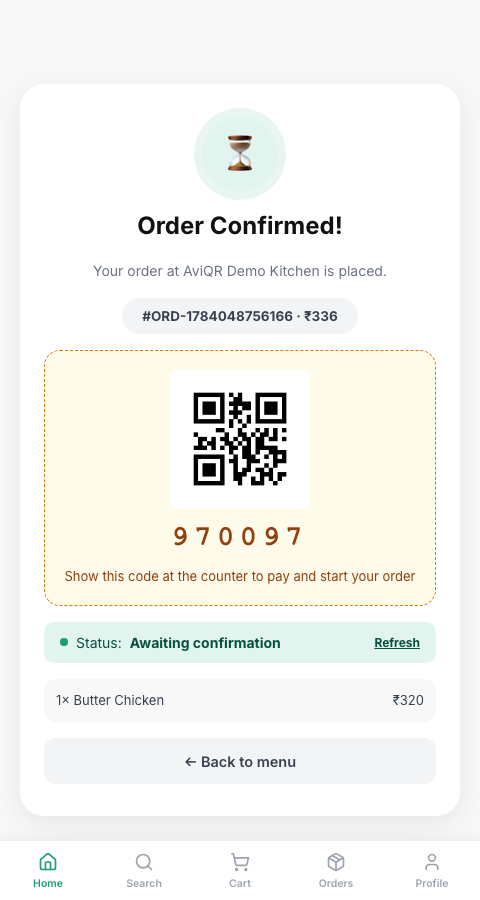
A code and QR your customer can show at the counter
After a pay-at-counter order is placed, the customer's confirmation screen shows a short 6-digit code and a scannable QR — proof of their order before it's ever paid for. The same code works twice: once to confirm payment, and again at pickup or delivery handover to close the order.
Table 6 orders butter chicken and chooses "Cash at counter." They see code 608305 with a QR on screen. The kitchen never sees the ticket until staff scans or types that code in at the counter and confirms payment.
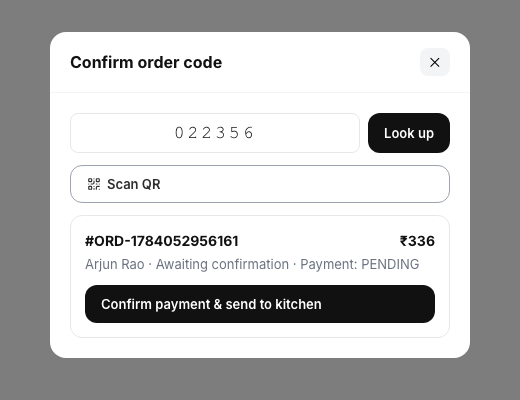
Confirm codes without leaving the billing screen
Counter staff get a "Confirm code" button right on the POS/Billing screen — scan the QR or type the code, see the order and amount due, and confirm payment or pickup in one tap. No separate app or screen to switch to.
A cashier at Billing clicks "Confirm code", scans the customer's QR, and taps "Confirm payment." The order is released to the kitchen queue immediately — cash, card, or QR, it all ends the same way.
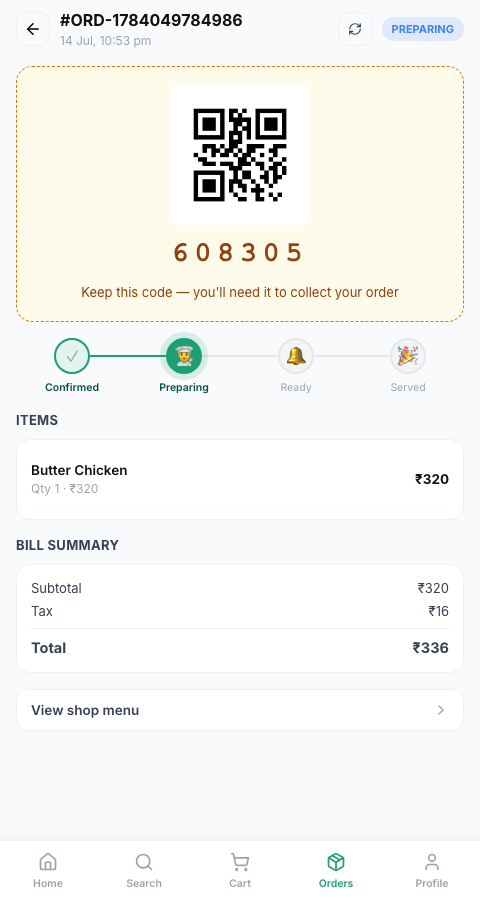
Live status, not just at checkout — everywhere
The Confirmed → Preparing → Ready → Served progress track follows the order into order history too, auto-refreshing every few seconds with a manual refresh option, so a customer can check in any time without reloading the page.
A customer places an order, closes the tab, and reopens their order history 10 minutes later — the tracker already shows "Preparing," kept live without them touching refresh.
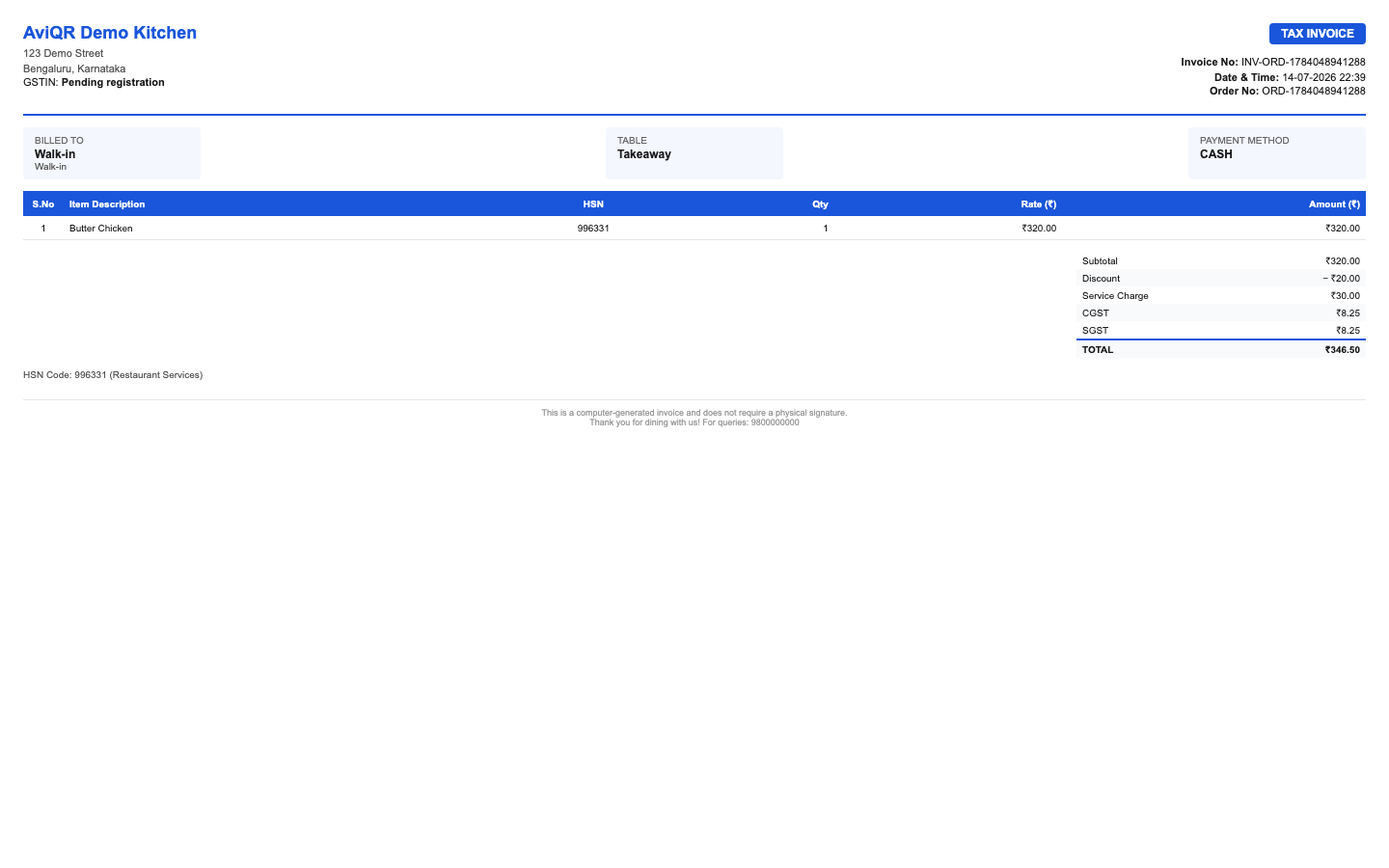
Discounts and service charges, itemized on the bill
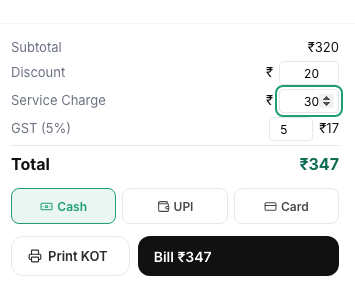
Apply a discount or add a service charge right at the billing counter — the bill recalculates tax on the adjusted amount automatically, with every line shown separately before you finalize.
A regular gets a ₹20 discount, and a 10% service charge is added for dine-in. The POS bill summary itemizes Subtotal, Discount, Service Charge, Tax, and Total — nothing hidden or bundled.
Receipts that carry your logo, not a generic template
Printed and shared receipts pull your restaurant's logo, address, and GSTIN straight from your shop profile — along with the full discount/service-charge/tax break-up — so every receipt looks like it belongs to your business.
A dine-in bill is closed and the printed receipt shows the restaurant's own logo at the top, the itemized bill, and GST details — ready to hand over as-is.